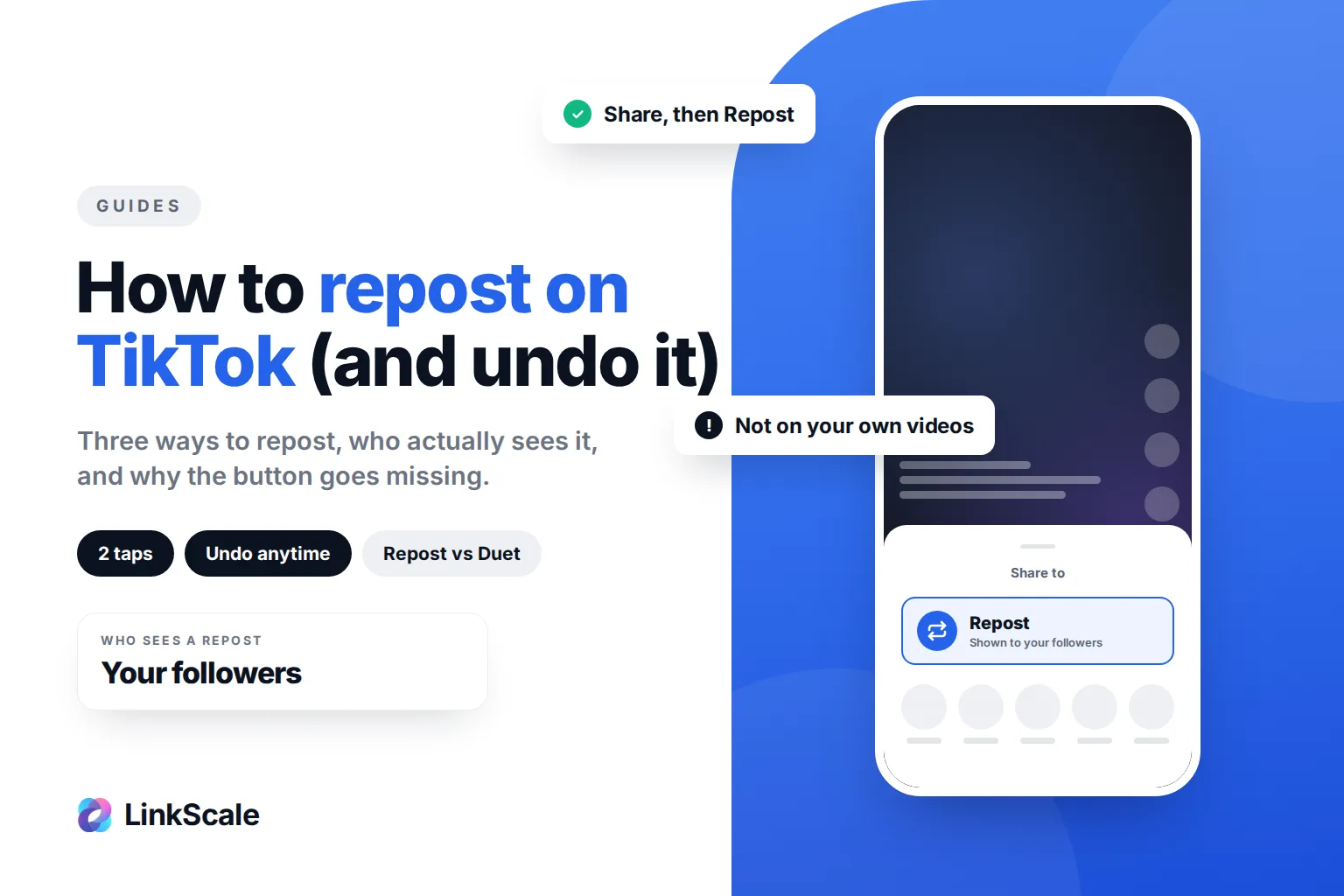
To repost on TikTok, open the video, tap the Share arrow on the right, then tap Repost. You can also press and hold the video and choose Repost. The video then appears in your followers' For You feed with your name on it, and in the Reposts tab of your profile. To undo it, tap Share again and choose Remove repost.
That is the whole feature. What trips people up is everything around it: who actually sees a repost, why the button is sometimes missing, and how a repost differs from a share, a Duet or a Stitch. Here is all of it, step by step.
How to repost on TikTok, step by step
TikTok's own Help CenterOpens in a new tab lists three ways to do it. They all end on the same Repost button.
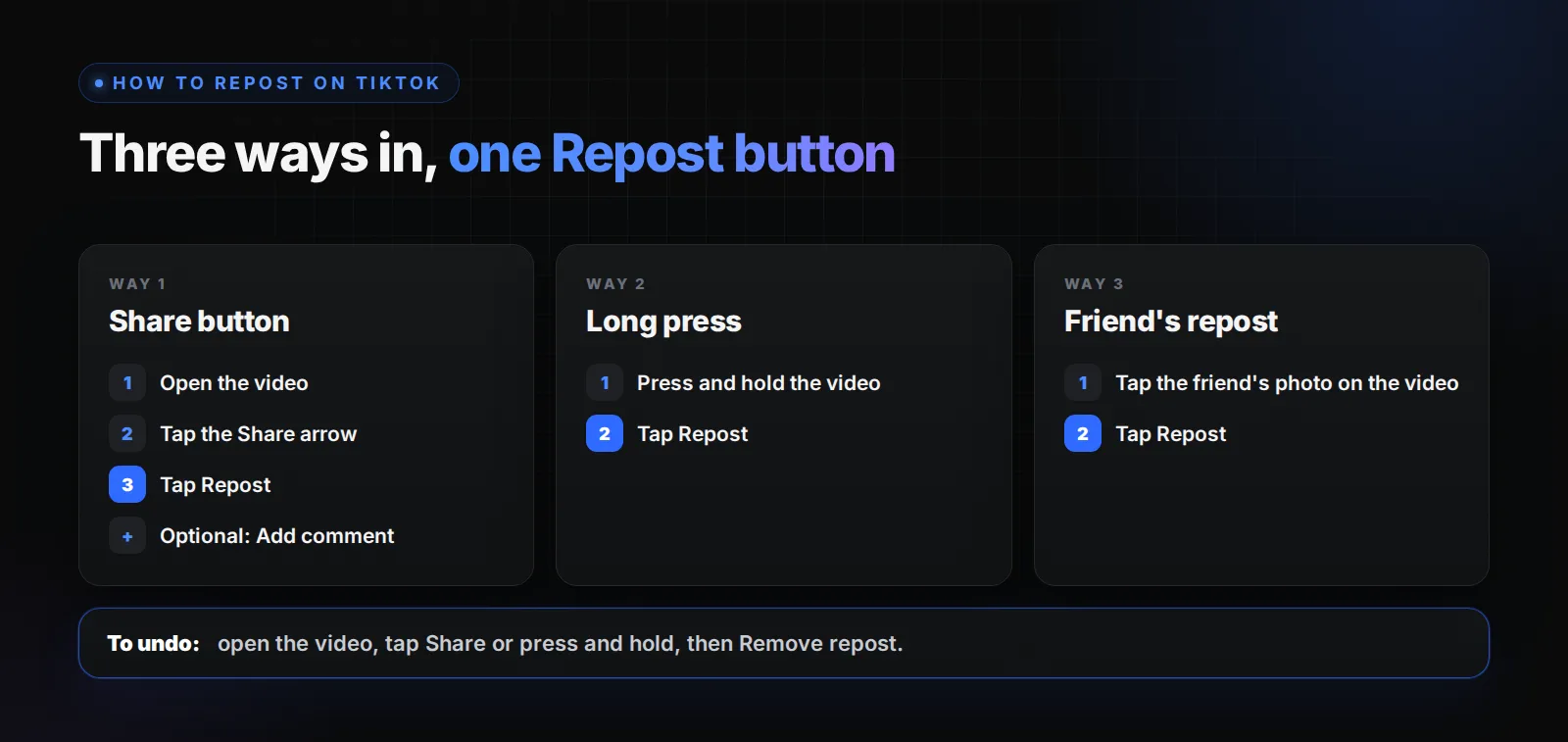
- Open the video you want to repost.
- Tap the Share arrow on the right side of the screen.
- In the tray that slides up, tap Repost (usually the first option, highlighted in yellow).
- Optional: tap Add comment to write a short line that shows with your repost.
A small confirmation tells you the video was reposted. Nothing is published as a new video on your profile grid.
From a long press
Press and hold anywhere on the video. A menu opens with Repost near the top. Tap it. Same result, one tap less.
From a friend's repost
When someone you follow has reposted a video, their profile photo appears on it. Tap that photo, then tap Repost to pass it on yourself.
How to undo a repost on TikTok
Reposts are not permanent. You can remove one at any time, and the original video is not affected.
- Open the video you reposted. The quickest way is your profile: tap the Reposts tab (the icon with two arrows) and pick the video.
- Tap the Share arrow, or press and hold the video.
- Tap Remove repost.
You can also tap your own profile photo on the video, tap Reposted, then Remove repost. There is no button to clear every repost at once: each one has to be removed individually.
Who sees your reposts on TikTok?
This is where most people are surprised: a repost does not go to the whole platform.
According to TikTok's Help CenterOpens in a new tab, reposted videos show up "labeled as a repost along with the profile photo and nickname" of the person who reposted it. In practice, reposts travel mostly through people who already follow you. They are a way to recommend something to your audience, not a way to reach new viewers.
If your account is private, only your followers see your reposts, both on your profile and in their feed. TikTok has also been adding controls for the Reposts tab under Settings and privacy > Privacy. The exact label moves between app versions, so if you do not see it, update the app first.
Repost, share, Duet or Stitch: which one to use?
Four features, four different results. Pick the one that matches what you want the video to do.
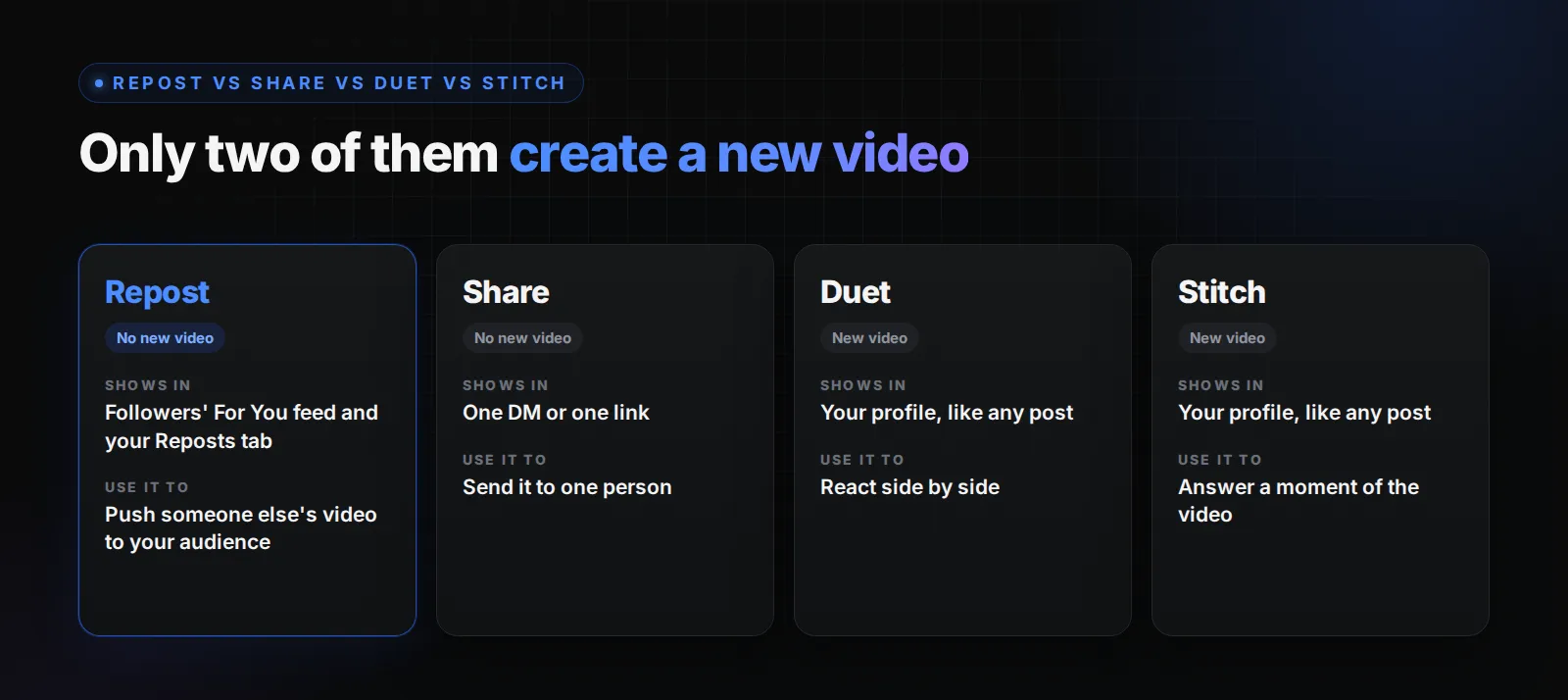
The key difference: a repost does not add a video to your profile grid, and it does not earn you views on your own content. Duets and Stitches do. If the goal is growth or money on your own account, a repost is a nudge to your followers, not content. Our breakdown of how much TikTok pays per view explains why only your own qualified videos count toward the Creator Rewards Program.
Can you repost your own TikTok?
No. The Repost button only appears on other people's videos. If you want an old video of yours to circulate again, you have three real options:
- Pin it to the top of your profile so every new visitor sees it first.
- Stitch or Duet yourself, which creates a new video that points back to the original.
- Re-upload a re-edited version, with a new hook in the first seconds. Re-uploading the exact same file tends to perform poorly and can look like duplicate content.
Why is the repost button missing on TikTok?
If you cannot find Repost in the Share tray, it is almost always one of these.
- It is your own video. Reposting your own content is not possible.
- The app is out of date. The Share tray changes often. Update TikTok from your app store.
- The video is private or friends-only. Restricted videos cannot be reposted.
- The creator limited sharing. Some creators restrict how their videos can be shared, and the option disappears.
- The video is under review. Content being checked against the Community Guidelines can lose sharing options for a while.
- The feature is not in your region or app version yet. TikTok often rolls features out gradually.
If none of these apply, log out, log back in and try again. A cache clear (Settings and privacy > Free up space) fixes a surprising number of missing buttons.
Do reposts help on TikTok?
For the original creator, yes: every repost puts their video in front of a new set of followers. For you, the benefit is indirect. Reposting shows your audience what you care about and keeps your account active between posts, but it does not create new content that TikTok can recommend on your behalf.
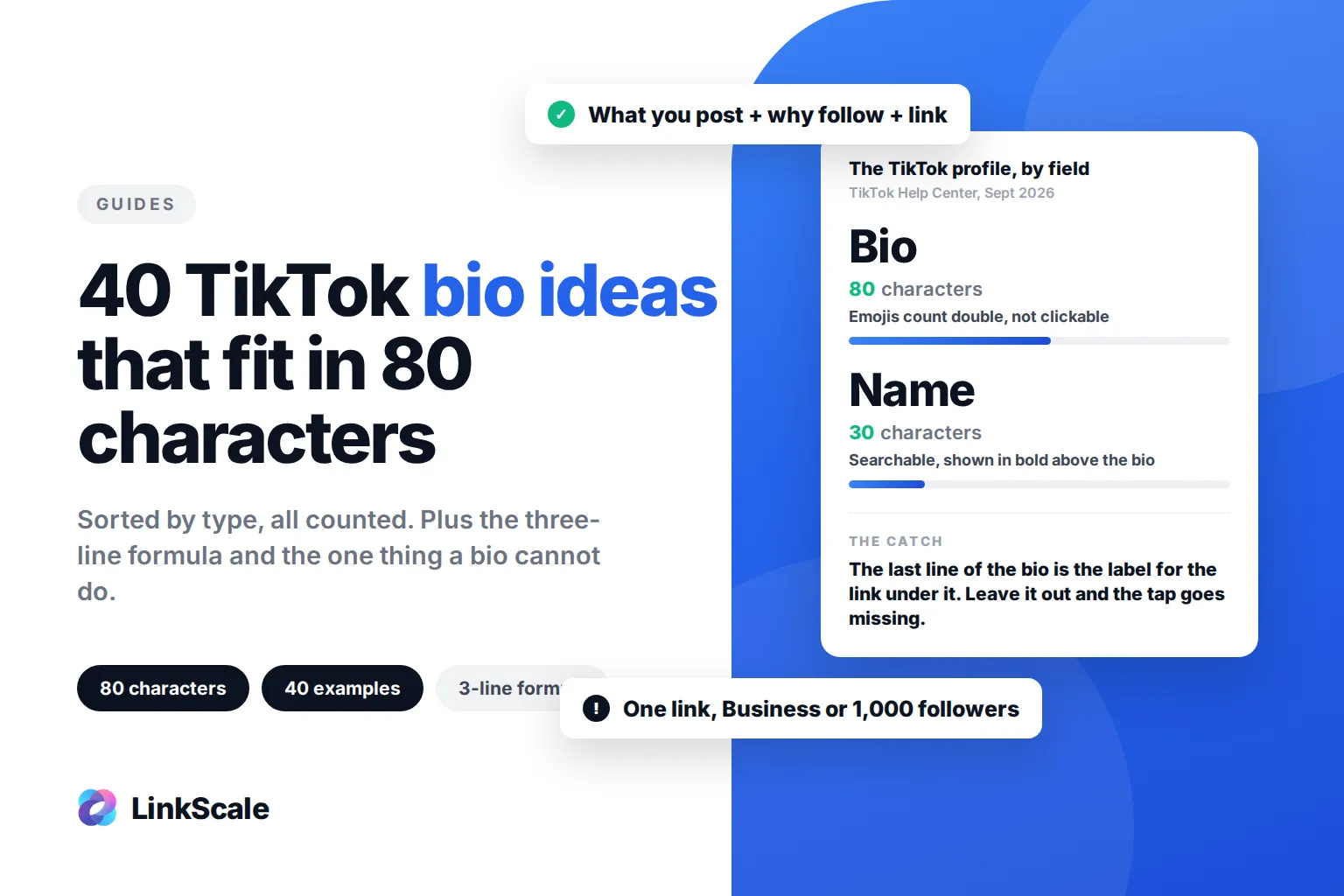
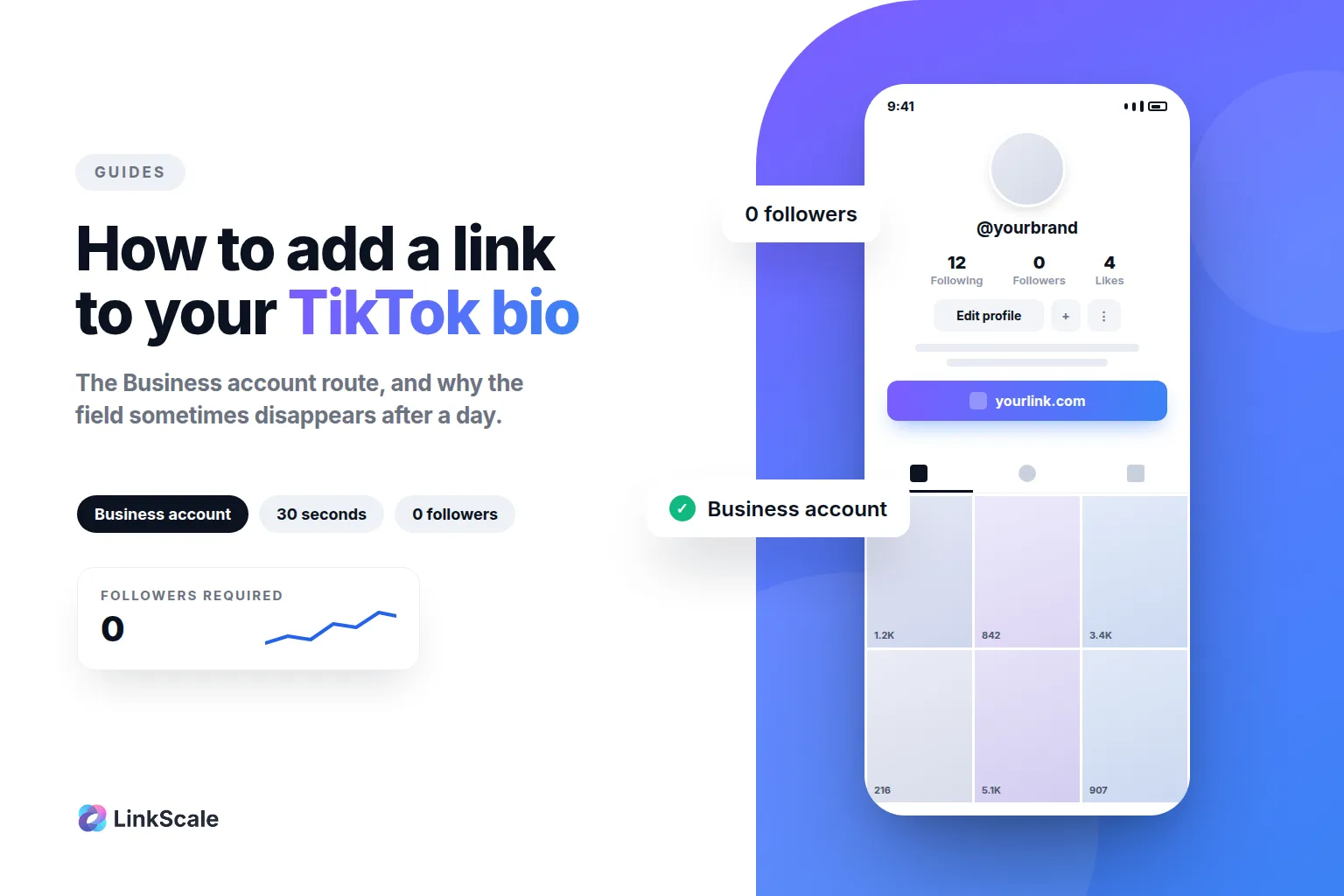
Where reposts become useful is when you have something to send people to. A follower who enjoys a video you reposted often lands on your profile next. That is where the bio and the link under it do the work. If you have not set that up yet, see how to add a link to your TikTok bio, with or without 1,000 followers, and our TikTok bio ideas for the 80 characters above it. A tracked link, like the ones built with LinkScale, then tells you whether those profile visits turn into clicks.
FAQ
Can people see what I repost on TikTok?
Yes. Your followers can see your reposts in their For You feed, labelled with your name, and anyone who visits a public profile can open your Reposts tab. If your account is private, only your followers see them.
Does TikTok notify someone when you repost their video?
The original creator can see that their video was reposted in their activity. Your followers may simply come across the repost in their For You feed.
How do I delete all my reposts on TikTok at once?
You cannot. TikTok has no bulk option. Open your Reposts tab, open each video, tap Share and choose Remove repost.
Can I add a caption to a TikTok repost?
Yes, a short one. After tapping Repost, tap Add comment and write a line. It shows with the repost, not as a new caption on the video.
Why can't I repost on TikTok?
The most common reasons are an outdated app, a private or friends-only video, a creator who limited sharing, or trying to repost your own video. Update the app first, then check which case applies.
Do reposts count as views?
A view is counted on the original video, for its creator. Reposting does not add views or watch time to your own account.
Updated 5 October 2026. Written by the LinkScale team.