


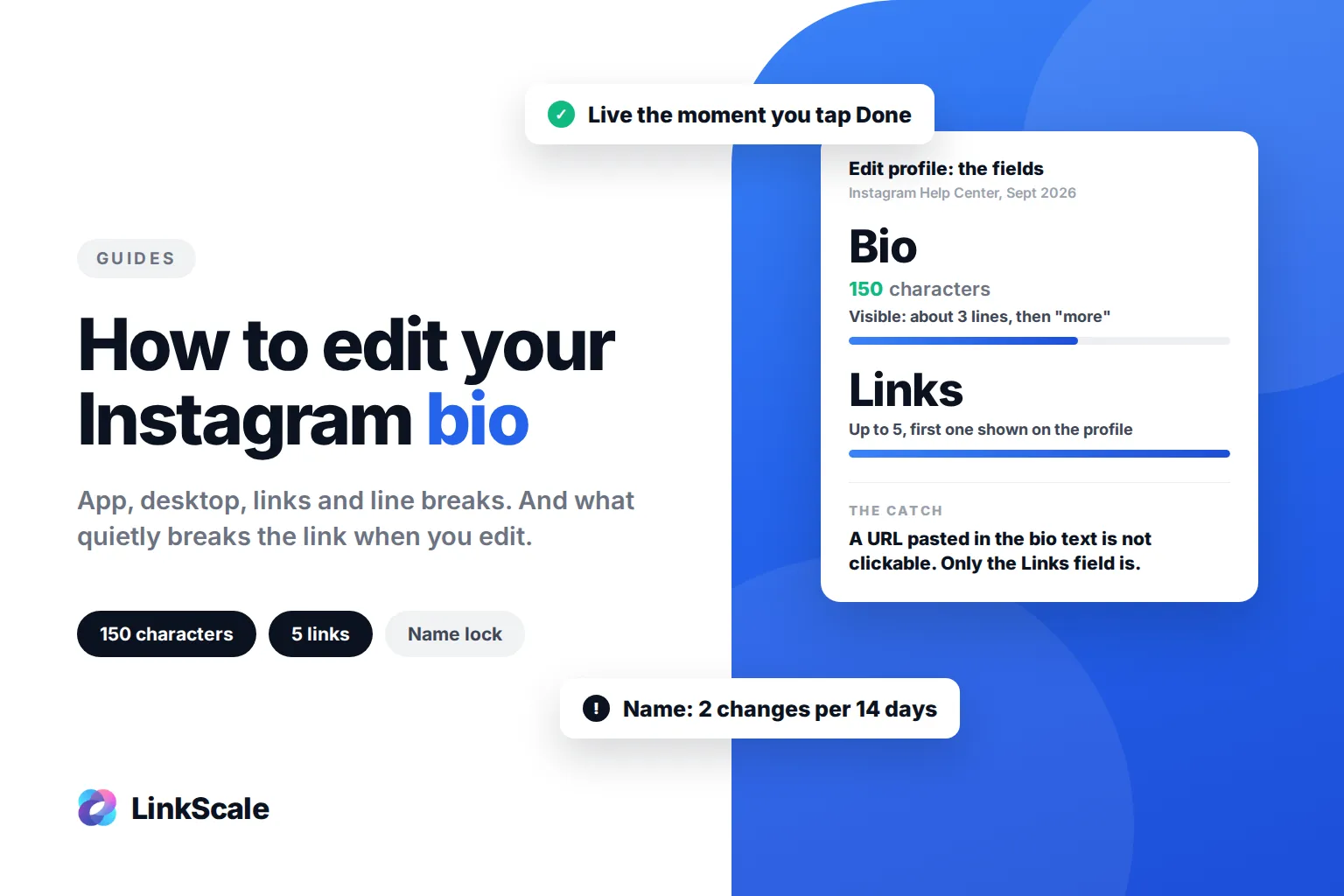
To edit your Instagram bio, open your profile, tap Edit profile, tap the Bio field, change the text and tap Done. The new bio is live the moment you save it, on every device, with no review step. The same screen also holds your name, username, pronouns and links, and each of those has its own rules. That is where most edits go wrong, and where a working link quietly stops working.
The bio field takes 150 characters, and Instagram hides anything past roughly three lines behind "more". So editing a bio is rarely about adding. It is about deciding what stays visible, and making sure the link under it still does its job when you are done. If the term itself is new to you, what bio means covers the basics, including the limits on TikTok and X.
How to edit your Instagram bio, step by step
On the Instagram app (iPhone and Android)
- Open Instagram and tap your profile picture in the bottom right.
- Tap Edit profile under your bio.
- Tap the Bio field. It sits under Name, Username and Pronouns.
- Delete or rewrite the text. The counter under the field shows how many of the 150 characters you have left.
- Tap Done (iPhone) or the checkmark (Android) in the top right.
The change is saved immediately. There is no draft state and no undo, so if you care about the previous version, copy it into a note before you start.
On desktop (instagram.com)
- Go to instagram.com and open your profile.
- Click Edit profile.
- Change the Bio field and click Submit.
The web version shows fewer options than the app. Links, pronouns and the profile banners are easier to manage on the phone. If a field you expect is missing on desktop, it is almost certainly in the app.
Editing the other fields on the same screen
| Field | What it is | What to know before you edit it |
|---|---|---|
| Name | The bold text above your bio | Not your @handle. Searchable. Can be changed twice in 14 days, then locked |
| Username | Your @handle and your profile URL | Changing it changes instagram.com/yourname everywhere it is printed |
| Pronouns | Optional, shown next to your name | No effect on search or links |
| Bio | 150 characters of free text | Truncated after about three lines. Not clickable, even if you paste a URL |
| Links | Up to five URLs with a title each | The only clickable place on the profile |
| Category | Professional accounts only | Displayed under your name, can be hidden |
Instagram's own Help Center is explicit that the bio is limited to 150 charactersOpens in a new tab, and that number has not moved in years. The five-link limit dates from April 2023, when Instagram opened multiple links in bio to every accountOpens in a new tab.
Editing the links under your bio
Links are not in the Bio field. They have their own section:
- Tap Edit profile, then Links.
- Tap Add external link, paste the URL and give it a short title.
- To change the order, hold a link and drag it. The first link is the one shown on your profile; the others appear when someone taps it.
- To remove one, tap it, then Remove link.
Pasting a URL into the Bio text field does not make it clickable. It shows as plain text, and the visitor has to copy it by hand. The Links section is the only place a tappable link lives.
Why you cannot edit your Instagram bio, and how to fix it
Most "I can't edit my bio" messages come down to one of five causes.
The change does not save
The app is out of date, or the connection dropped between typing and tapping Done. Update Instagram, force-close it, and try again. If the text still reverts, log out and back in. This is the most common cause and the least interesting.
"Couldn't save changes" or "Try again later"
Instagram limits how often a profile can be edited, and it applies the limit more tightly to new accounts and to accounts that have just been flagged. Editing the name, username, bio and links all at once, several times in an hour, is what triggers it. Wait a few hours, then make one change at a time.
The name is locked
The Name field can only be changed twice within 14 days. After the second change, the field stays fixed until the window resets. This is separate from the username and separate from the bio, which have no such limit.
The link is refused
If a URL is refused when you add it to Links, the domain has a problem on Instagram's side: it has been reported, it sits on a shared domain that other accounts have abused, or it points somewhere Instagram does not allow. The bio is not the issue, the destination is. Test the same field with a neutral link to confirm, then look at the domain.
The account is restricted
If Instagram has limited your account, some profile edits fail silently until the restriction lifts. Check Settings, then Account Status. Our guide on being banned from posting on Instagram explains what each restriction means and how long it usually lasts.
How to add line breaks and formatting to your bio
Line breaks that stay
Typing a line break directly into the Bio field works on some app versions and collapses on others. The method that holds every time: write the bio in your phone's notes app with the breaks you want, select all, copy, and paste the whole block into the Bio field. Remove any trailing space at the end of a line, because that is usually what makes a pasted break collapse.
Fonts and symbols
Instagram has no font setting. "Fonts" you see in other bios are Unicode characters generated by a converter and pasted in. They work, but two things to know: they are not searchable, since Instagram matches plain words in bios and a stylised word is a different string, and screen readers spell them out character by character. Use them on one word at most, never on the line that tells people what you do.
Emojis
One or two, placed where you want the eye to land. Beyond that they stop guiding attention and start competing with your text. We go through the full line-by-line structure in how to write an Instagram bio that gets the click.